
Fluent Search version 1.5.0.0 beta
.jpg)
Fluent Search 1.5.0 Beta — the biggest update yet
Fluent Search 1.5.0 beta is here, and it is by a wide margin the largest release I have ever shipped.
It is also two releases in one. Version 1.1 spent a long time in beta and never graduated to the stable channel, so rather than leave that work stranded, 1.5.0 absorbs all of it. If you are on the stable channel today you are still running 1.0.1.4 — this update brings you everything from 1.0.2, everything from 1.1, and everything new in 1.5 in a single step.
Almost every existing feature was rebuilt, sharpened or made faster. Seven features are genuinely new. And the app is quieter than it has ever been: near-zero idle CPU, dramatically lower memory, and no more stalls when you press the hotkey after lunch.
A quick word before you install. This is a beta, and a big one — nearly every subsystem was rewritten. Expect bugs, including ones that get in your way. Back up
%APPDATA%\Blastbefore updating (that folder holds your settings, tasks and plugin configuration), and know that you can go back at any time by setting Settings → Updates → Release feed to Stable. There is a section at the end on what I need from you as a beta tester.
How to get it: open Settings → Updates → Release feed and switch it to Nightly, the pre-release channel. Fluent Search will offer 1.5.0 beta on its next update check. If you would rather start clean, the installer is on fluentsearch.net.
A refreshed look, everywhere
The entire interface went through a proper design system pass rather than a coat of paint.
The search bar, home screen, results list, selected-result cards, tags, settings and plugin controls all got clearer typography, modern surfaces, and fluid keyboard and window motion. Light and dark now share one set of card, control, selection, divider and popup colours built on Fluent semantic surfaces — so light mode is no longer dark mode with the lights turned up.
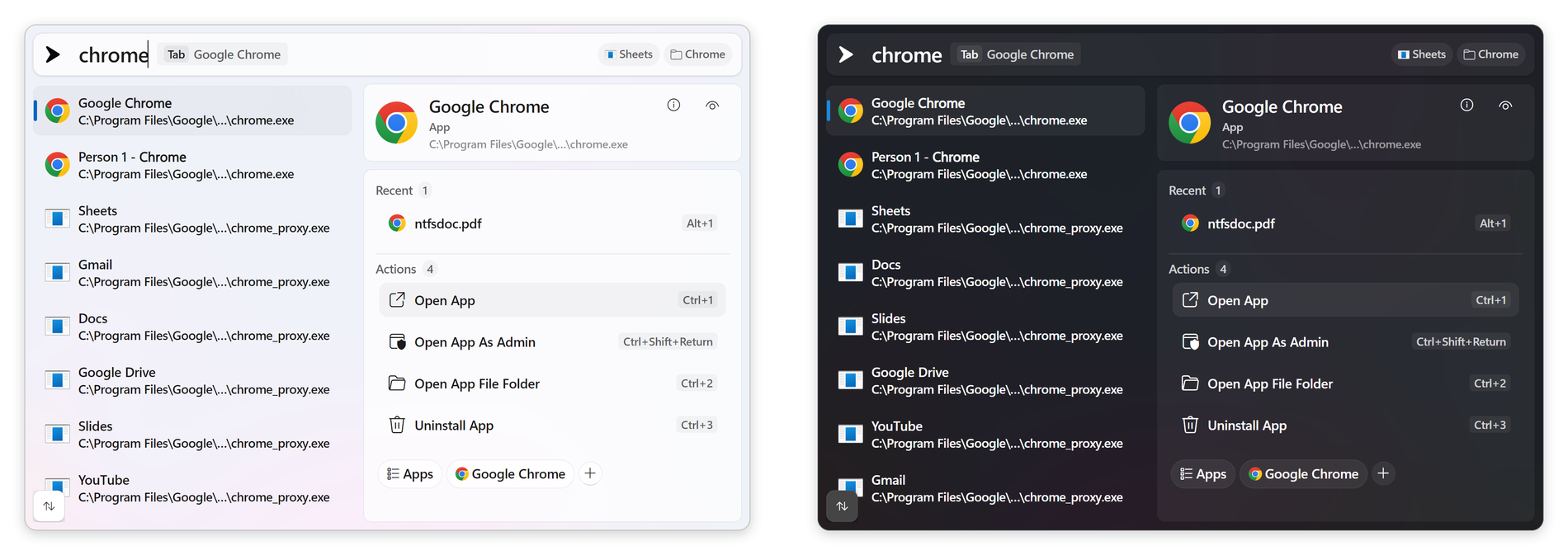
The refresh reached every window, not just the main one:
- Settings was modernised end to end, with consistent elevation, shapes, focus rings and motion.
- About, Feedback, Plugins and the four update dialogs were realigned to the same design language. Two long-standing update-dialog bugs went with it: "Cancel" in the Checking for updates dialog did nothing, because it was wired to a command that does not exist, and that dialog never showed the app icon.
- The result ordering button — the last floating control the refresh had not reached — now matches the floating result toolbar. Both are far easier to see: they previously used the popup surface colour, which in dark mode is almost identical to a selected result row, so the ordering button visually dissolved into the list behind it.
- Selection indicators glide smoothly between list and tab items, and animate correctly from the very first selection.
- Minimalistic scrollbars stay visible while you scroll — wheel, touchpad, touch or programmatic — and fade after a short idle grace period without shifting content.
- Window edges are much easier to grab. The invisible resize area around every window was expanded, including on high-DPI displays.
Two new display options landed alongside it: text antialiasing (automatic, subpixel, grayscale or aliased) and image interpolation (automatic, aliased, low, medium or high).
Explore without typing — the new home screen
This is brand new in 1.5, and it changes what the home screen is for.
Until now the home screen was a place to put things you had pinned. It is now a place to browse everything Fluent Search can see, without typing a single character.
Press the arrow-down key on an empty search bar and you get an explore rail: a row of chips, each one a lens onto a different part of your PC.
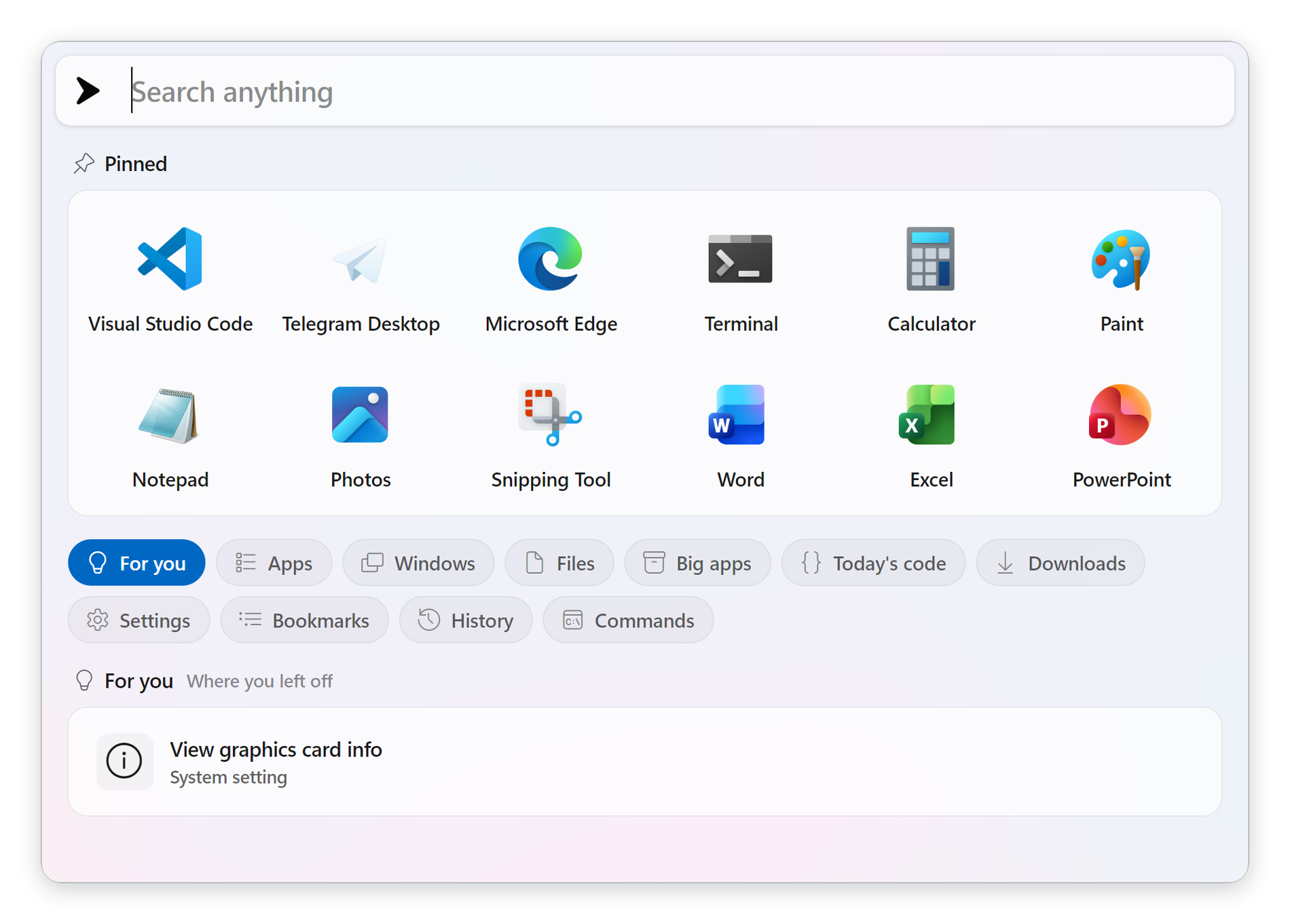
Pick a lens and its results stream in immediately. Start typing and it turns into a normal search, scoped to whatever you were browsing.
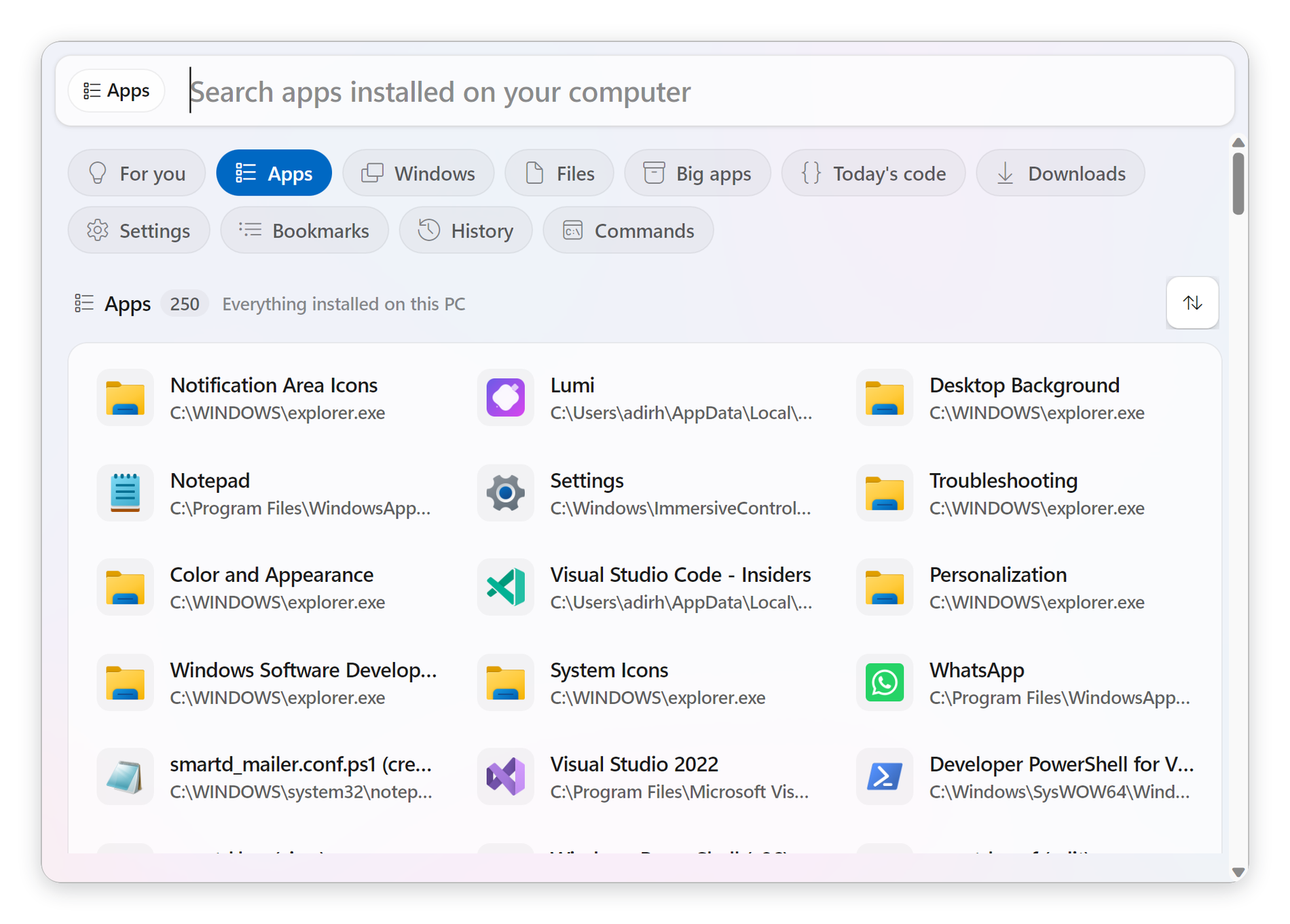
The clever part is what a lens actually is. A lens is just a name, an icon, and the search tags it browses — built on the same search tag system as the rest of the app. Which means you can build your own.
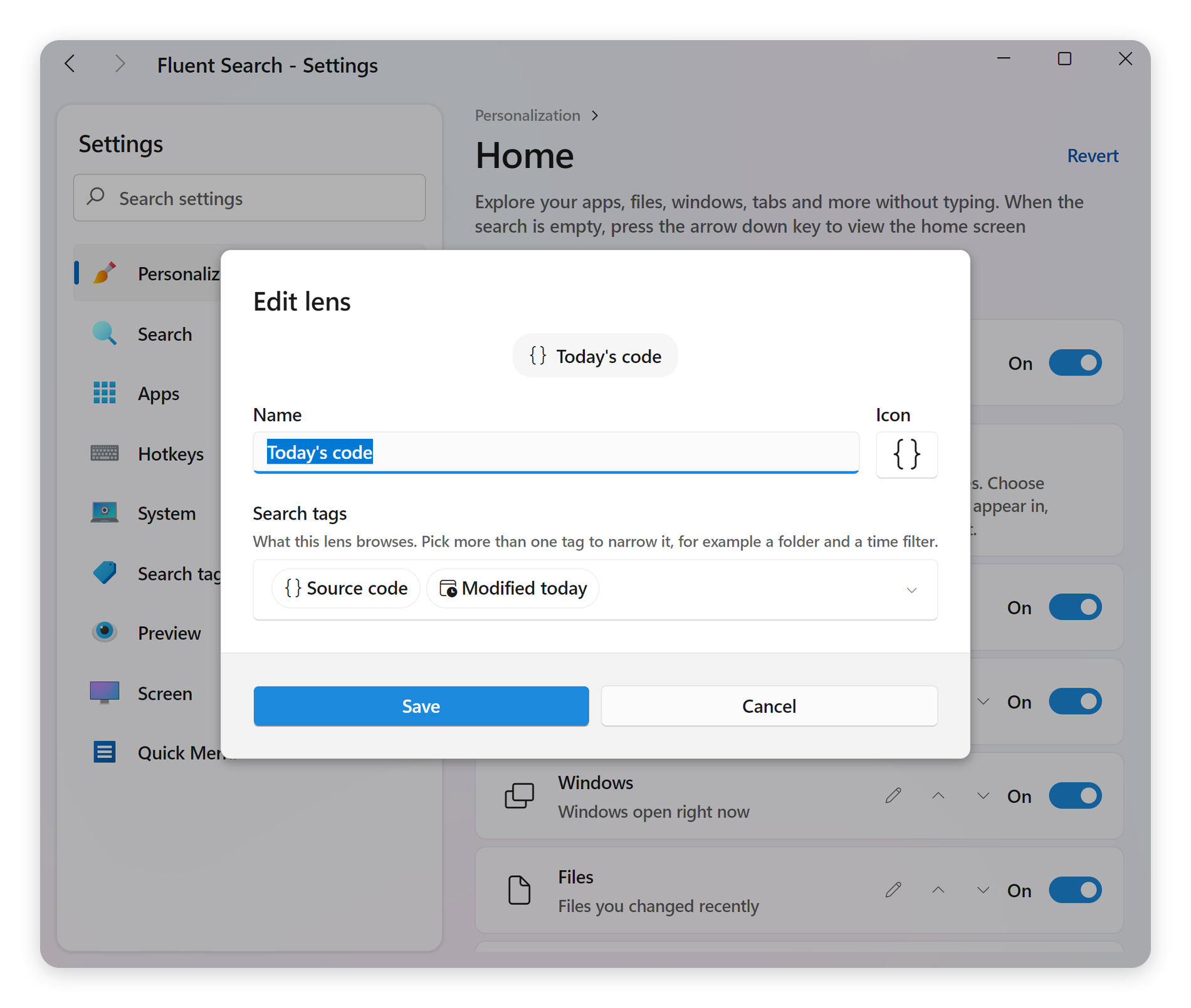
- Build your own. Add a lens, name it, pick an icon, and choose the tags it browses. Combine several tags to narrow it — a file type plus a time filter gives you "this week's documents" as a permanent chip.
- Choose which lenses appear and in what order. Reorder them, edit the built-in ones, remove the ones you never use. For you always comes first.
- Lenses adapt to your setup. A lens only appears when the search app behind it is loaded and its tags actually resolve, so turning off the browser search app makes Tabs, Bookmarks and History quietly disappear rather than sit there returning nothing. A lens you built yourself always stays on your rail, with a clear explanation when its tags are unavailable.
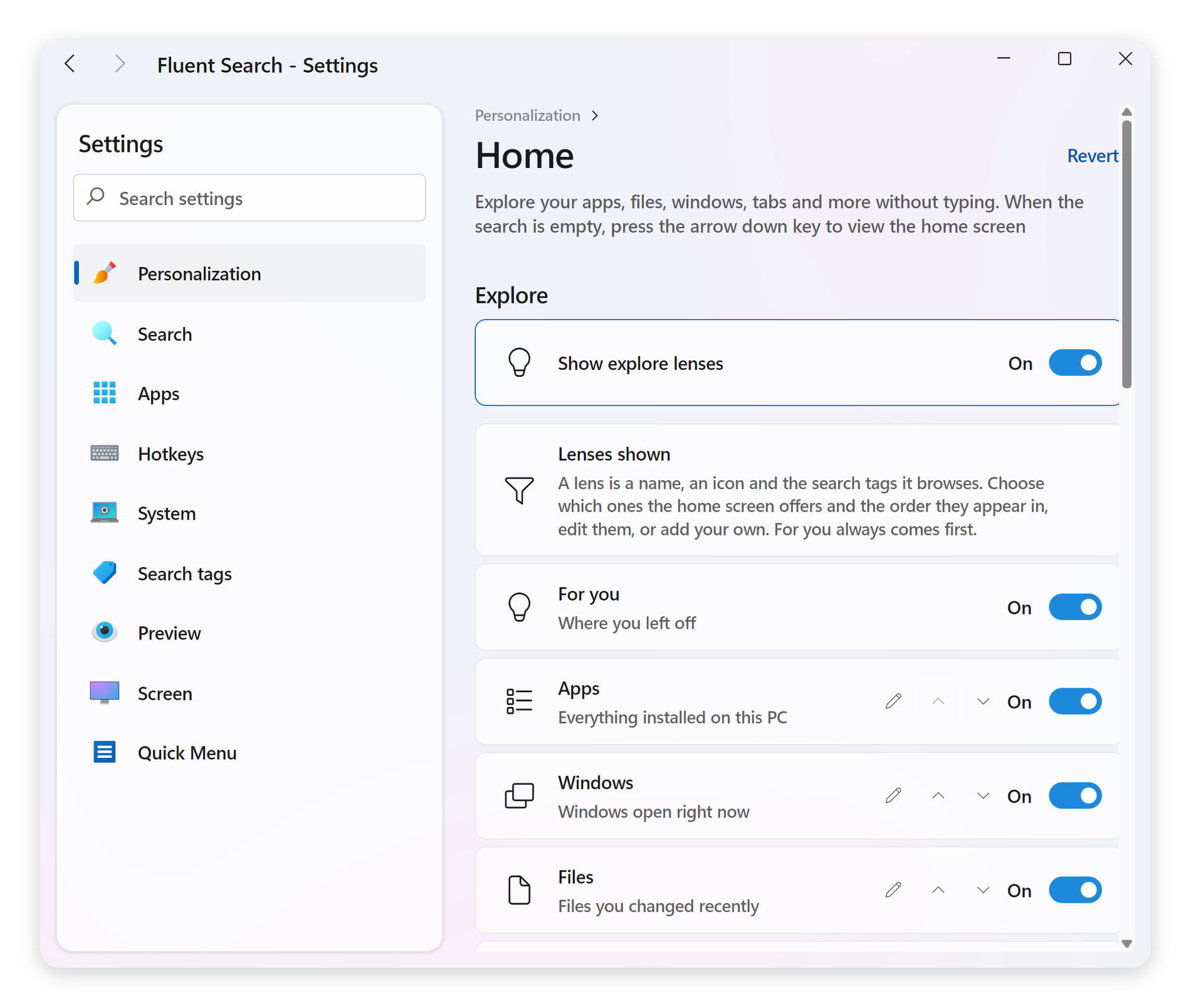
Three settings control it: Show explore rail, Results per lens, and Reopen on the last lens.
The existing home screen work is all still here too — items can be reordered, moved into folders and previewed while dragging, and Backspace now collapses the home screen back to the search bar, mirroring the arrow-down that opens it.
AI Search, rebuilt from the ground up
AI Search arrived in 1.1 as a transformer running out of process. It worked, but it was heavy, slow to start, and occasionally unreliable.
In 1.5 it has been replaced entirely with a compact static multilingual embedding model — 256 dimensions, quantised to 8 bits, memory-mapped straight off disk. The difference is not subtle:
- It starts almost instantly. No model warm-up, no separate process to spin up.
- It uses dramatically less memory and CPU.
- It runs entirely on your device. Nothing is sent to the cloud, ever.
- It finds things you have forgotten the name of. Apps, files and settings all come back when you search by meaning instead of by exact wording.
- Three sensitivity levels. Precise shows only close matches, Balanced suits most searches, and Broad includes looser ideas — with wider discovery still available through the
AItag.
And if you would rather not have any of it, the "Disable all AI features" switch hides every AI surface and turns the whole thing off in one click.
Dynamic search tags
Search tags can now carry parameters, so you narrow a search by typing rather than by opening a filter panel. Type a tag name, press Tab, and it becomes a chip in front of your query.
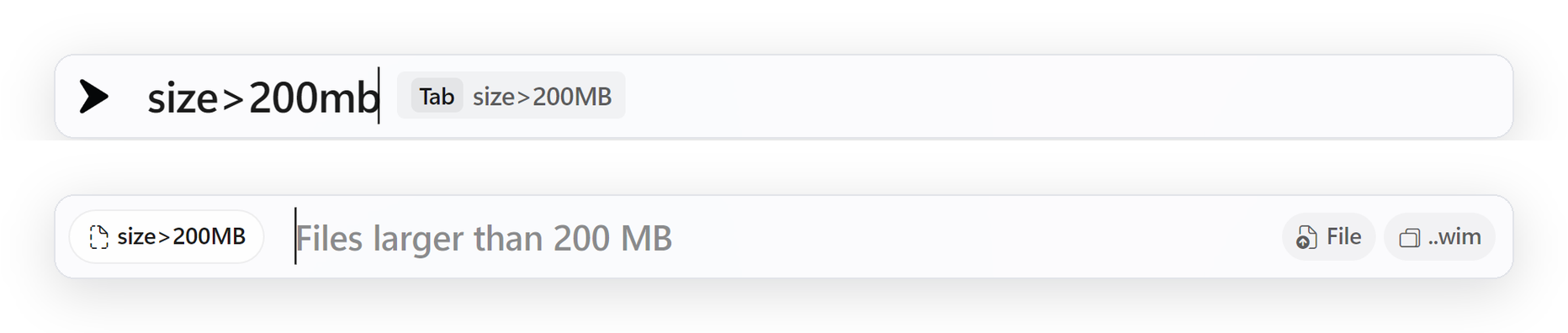
- Files — filter by extension, by size, or by an absolute or relative modified date
- Browser history — filter by when you last visited a page, and how often you have visited it
- Combine them freely — several tags stack to narrow a search as you type
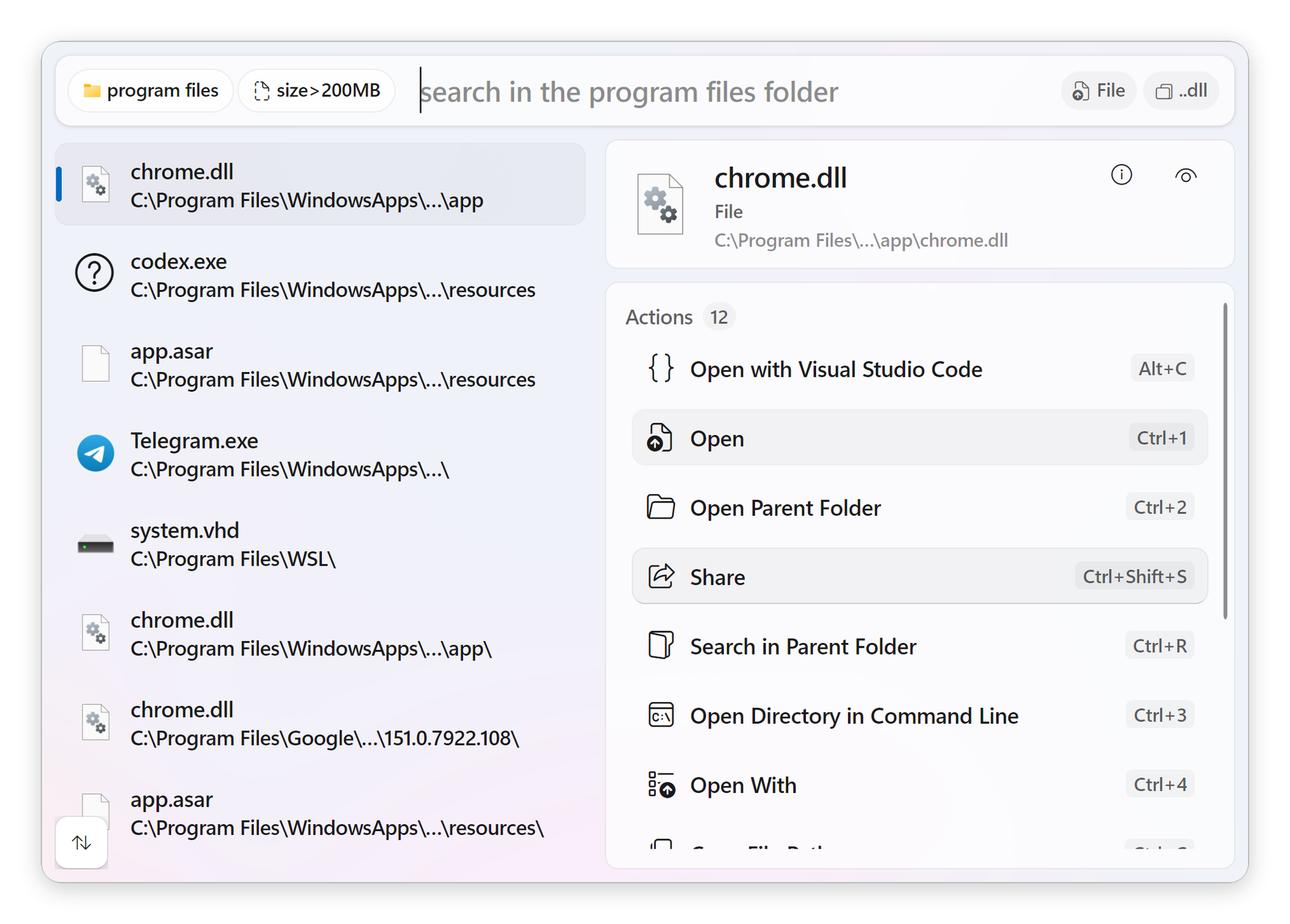
The built-in tag library also grew substantially. Files gained six new type tags — archive, source code, spreadsheet, presentation, ebook and installer — and the four existing ones learned a lot of new extensions: image now covers webp, heic, avif, svg and bmp; video covers wmv, m4v, mpg and 3gp; audio covers ogg, opus and midi; document covers rtf, md and csv. Browser search gained "visited today", "visited this week" and "frequently visited", so you no longer have to remember the visited> and visits> syntax.
Existing users get the new tags without losing anything: tags you deleted stay deleted, extension lists you customised are untouched, and lists you never edited are refreshed to the improved defaults.
Several long-standing tag bugs were fixed while building this. Combining a file type tag with a process silently searched everything. Tag order changed results, so rider64 image and image rider64 disagreed. recent combined with an extension tag returned nothing at all. And file type tag settings silently reverted to defaults in the shipped build, because the upgrade path used a form of JSON deserialization that is disabled in a trimmed build.
Quick Menu, redesigned for contextual workflows
Quick Menu has been rebuilt as a mouse-first contextual workspace that understands what you are looking at. Opened on its own it is a launcher for favourites, recent activity and search tags.
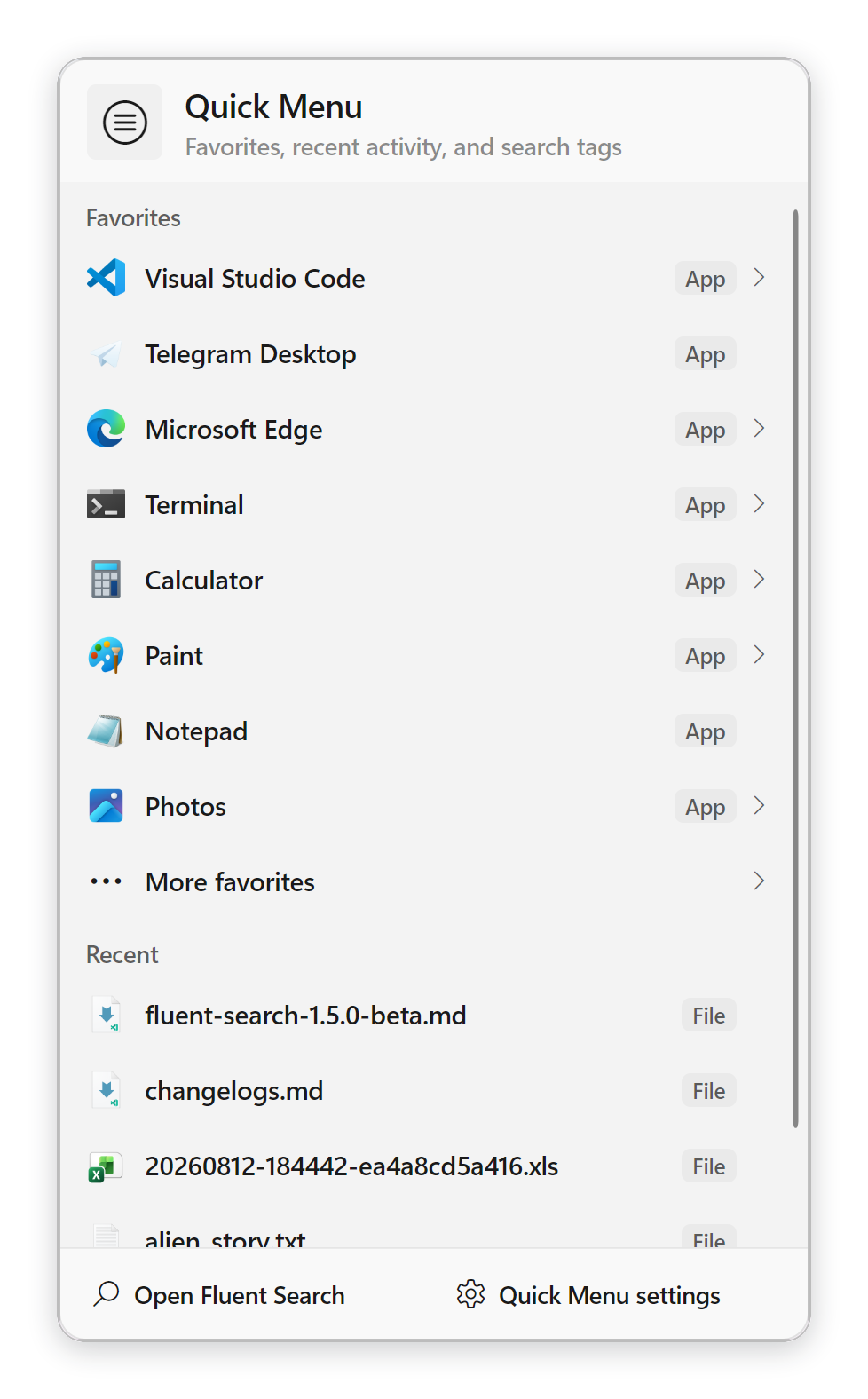
Opened over something, it acts on that instead:
- File Explorer and file dialogs — nested folders, copy and move destinations, native Windows context menus
- A selected file — its full set of operations
- Selected text, editable path fields, and web pages
Context Actions is now folded in. When the focused window is File Explorer with exactly one item selected, the Quick Menu hotkey, mouse trigger or touchpad gesture opens a compact actions window right at your pointer. It shows exactly what it will act on — icon, name, type, size, modified date and location — and it is fully keyboard driven.
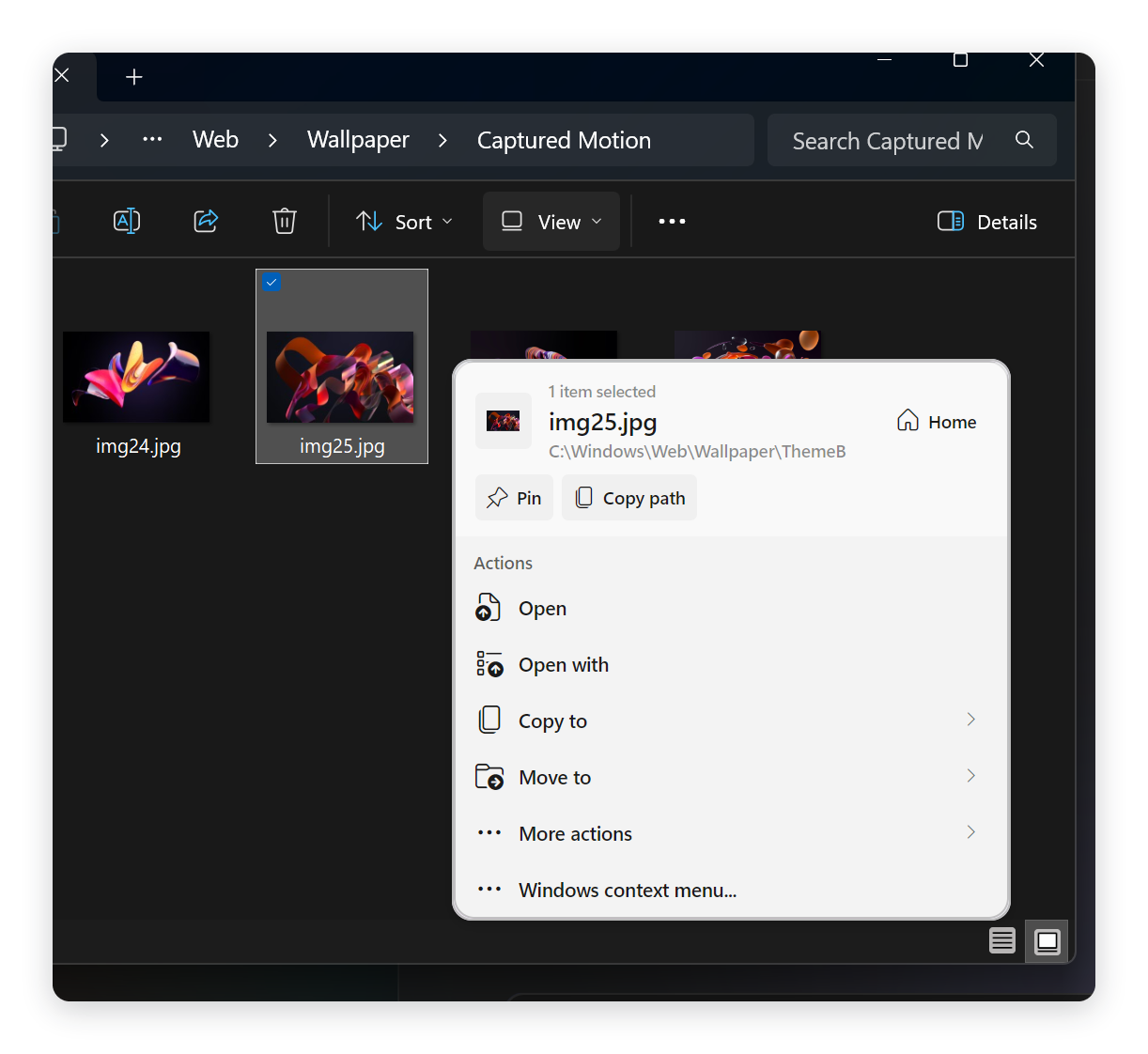
Destructive operations are held back for drive and share roots. It also works on every drive letter now; it previously only recognised C, D, E and G.
Pointer and keyboard behaviour got a lot of polish: hover intent, neutral mouse selection, predictable submenu ownership, cancellation-safe actions, responsive sizing and configurable sections. Folder submenus now wait for enumeration to finish instead of appearing empty, and touchpad three- and four-finger gestures correctly resolve the window that was active when the gesture began.
File search — faster, lighter, and much smarter
This received the single largest engineering investment in the release.
File Index V2 (the Compact Indexer) is the foundation:
- Up to 20× faster indexing
- Up to 10× smaller index on disk
- Up to 5× faster search while Fluent Search is running
- Better fuzzy matching, including much-improved Chinese support
- Faster content indexing and lower background resource usage
1.5 then made searching it dramatically cheaper. Fluent Search keeps an in-memory overlay of recently changed files so results stay correct between rebuilds. On a real machine that overlay had grown to roughly 314 MB — three quarters of the entire heap — and every keystroke copied the whole thing before scoring it, allocating another 21–26 MB of garbage. Overlay entries no longer store strings at all; they hold small offsets into the one path string that already exists.
The result: memory down about 42%, live strings down 67%, peak working set roughly halved. A search across a 400,000-entry overlay went from about 21 ms to about 1.4 ms, allocating 77 KB instead of 21 MB. The millisecond count matters less than what it removed: the old code triggered a full garbage collection on nearly every search, which is exactly what made typing feel like it hitched. That is gone.
New metadata filters find items modified today, this week or this month, and large files over 100 MB or huge ones over 1 GB.
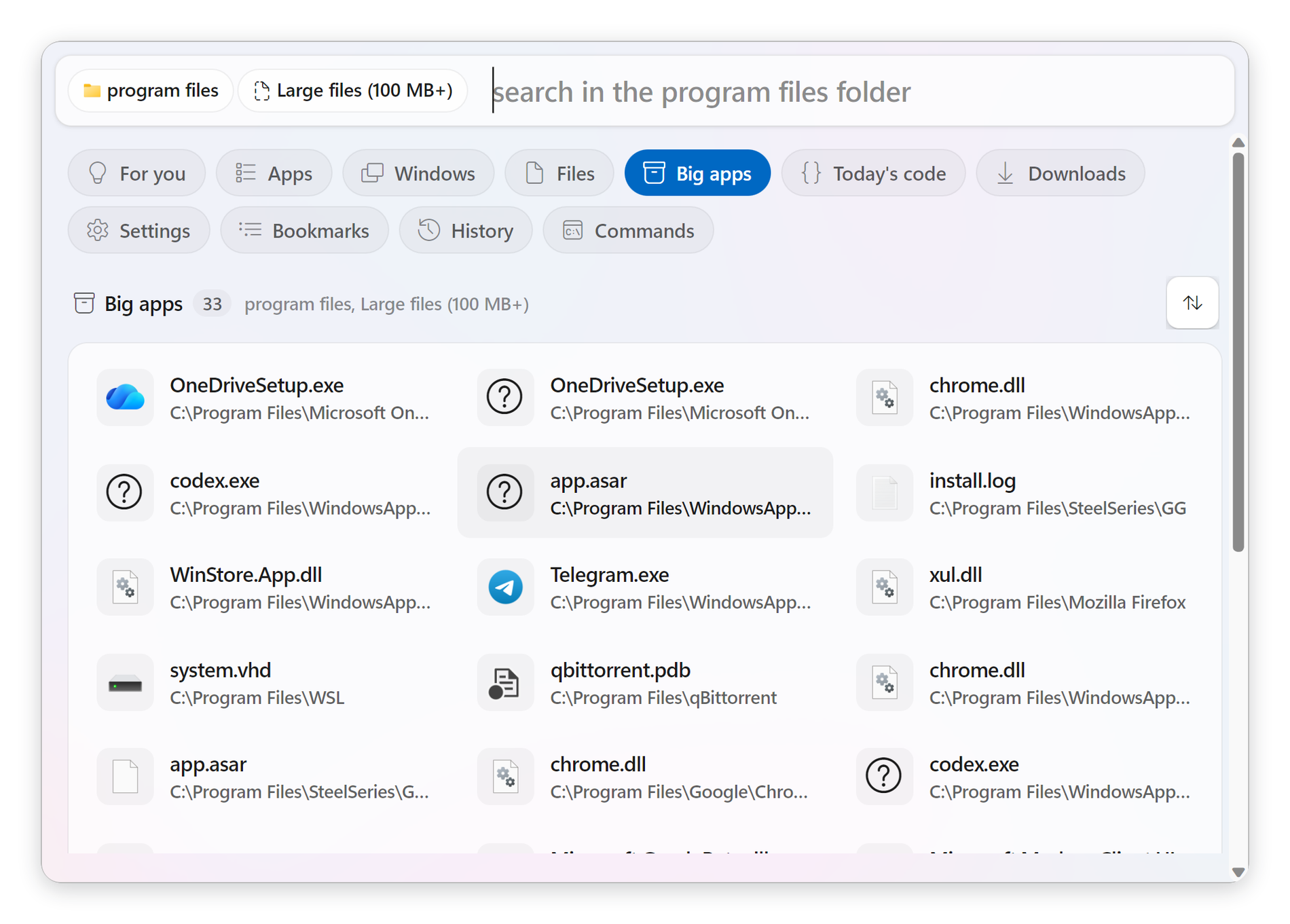
And a long list of indexing correctness fixes:
- No longer stalls on fragmented NTFS metadata, and scans it faster with lower memory use
- Hard links in the same folder are preserved, and files with alternate data streams report correct sizes
- The index recovers reliably after crashes, restarts and interrupted writes
- Content search paths update correctly after case-only renames
- Continuous pinyin in folder paths, and common Latin letter and ligature variants, are found correctly
- File sizes and modified-time filters from Windows Search are handled correctly
- Scheduled indexing for non-NTFS drives (network, FAT32) with a configurable interval
- Dotted names and path-style queries handled far more reliably
File and folder results also interact with Windows open, save and folder dialogs far more reliably, and dropping a file into Explorer no longer blocks Fluent Search while a large copy finishes.
Screen Search is now a full keyboard navigation tool
Screen Search puts a two-letter label on everything clickable on screen; typing a label acts as a click on it. It used to close after a single click, which meant pressing the hotkey again for every step. It now stays with you.
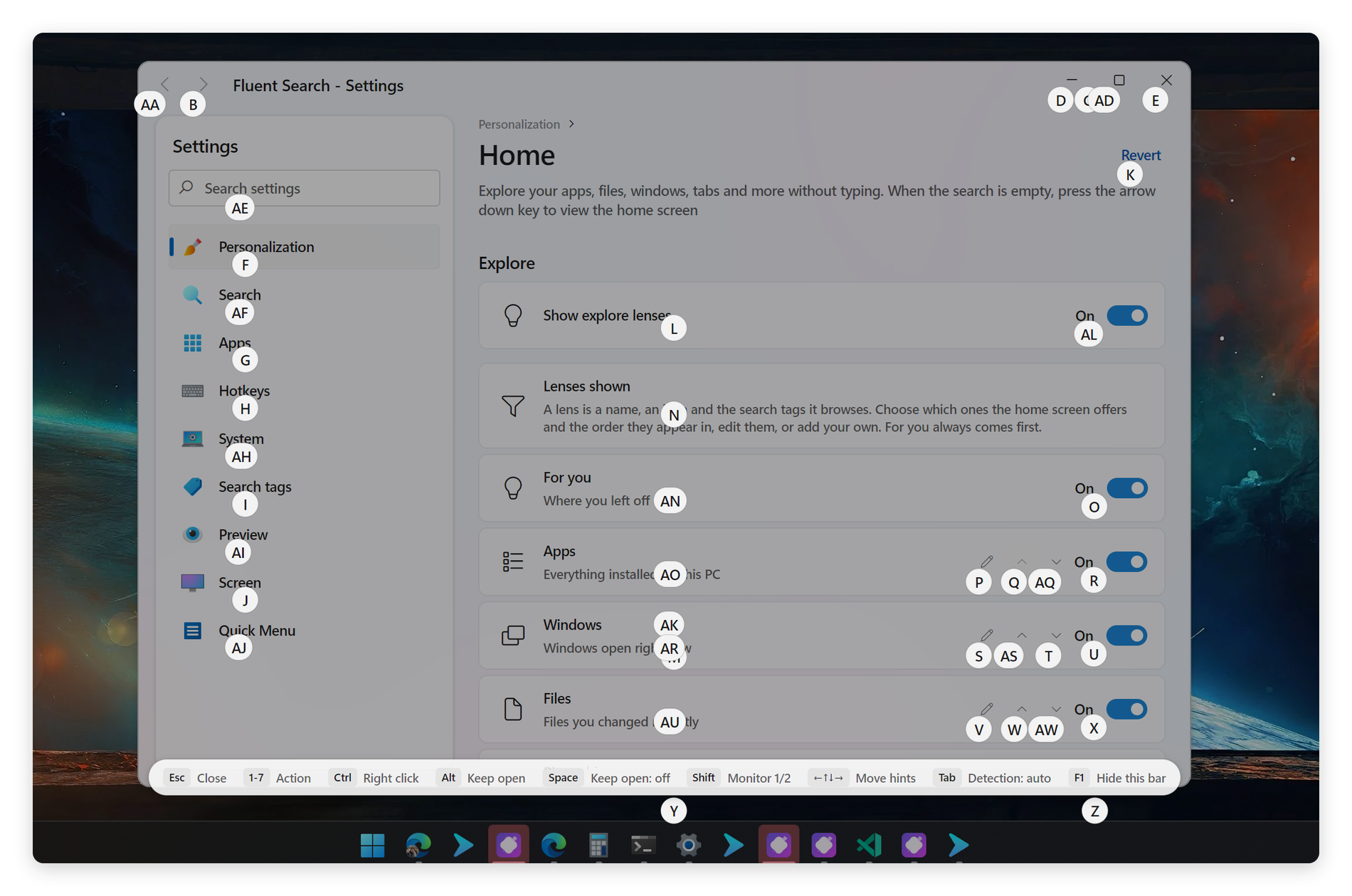
- Hints stay open after a click. The screen is rescanned automatically and the hints come straight back. Hold Alt to keep them open for one click, or press Space to leave them on for the session.
- A shortcut bar lists the available keys and doubles as a status display: which action is armed, whether hints will return, which detection engine found what is on screen, which monitor is shown, and how far the hints have been moved. F1 hides it.
- Two new actions. Middle click opens a link in a new tab or closes one, and triple click selects a whole line or paragraph. Both get their own customisable keys.
- Action keys reordered by real-world use: 1 single click, 2 double, 3 triple, 4 right, 5 middle, 6 select, 7 move pointer. Keys you customised yourself are migrated.
The overlay was redesigned to match the rest of the app: rounded pill plates with soft outlines instead of flat accented rectangles, fading and scaling in rather than snapping onto the screen. The screen behind the hints is now dimmed, with a spotlight cut out around everything the hints point at, narrowing as you type. Dimming is adjustable (or zero), and high-contrast themes are never dimmed.
Two frustrating behaviours are gone. Typing a letter that no hint starts with no longer empties the screen — the keystroke is refused and the plates give a short shake. And nested hints that used to be completely buried behind each other are now nudged clear, so every element is reachable.
It is also much cheaper to draw. First-show rendering is roughly 3.8–4.6× faster with about 90% fewer allocations, steady-state rendering is about 20% faster, and the dimmed spotlight state now renders without allocating at all.
Tasks — a modern low-code designer
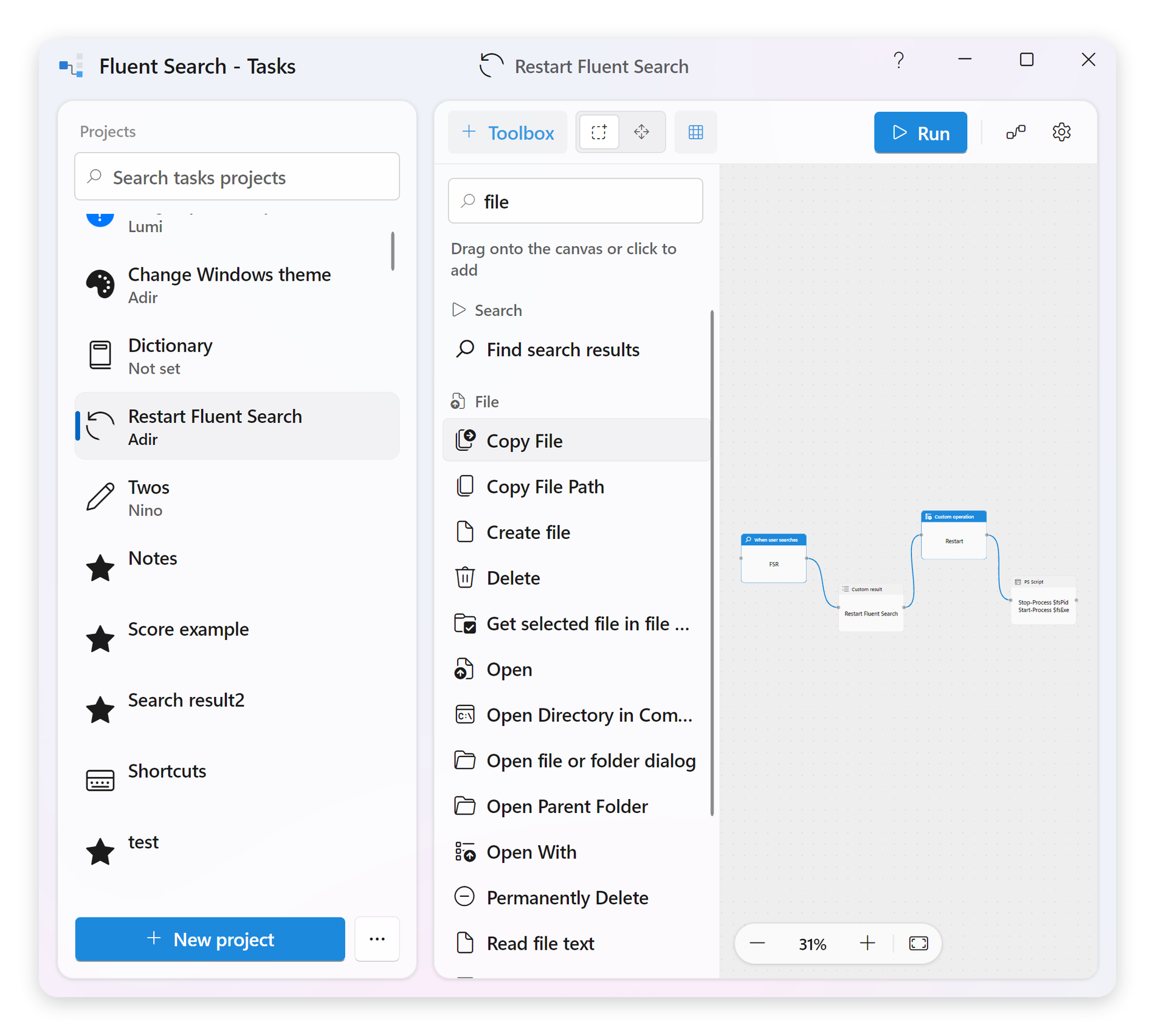
The Tasks window was a canvas you could look at more than one you could build on. It is now a proper drag-and-drop designer.
Building a task
- A searchable, grouped toolbox of every trigger and operation — drag onto the canvas, or click to drop it where you are looking
- Real connection ports — drag from a node's output onto another node instead of hunting through a menu
- A quick-add button on hover, offering only the operations that can legally follow
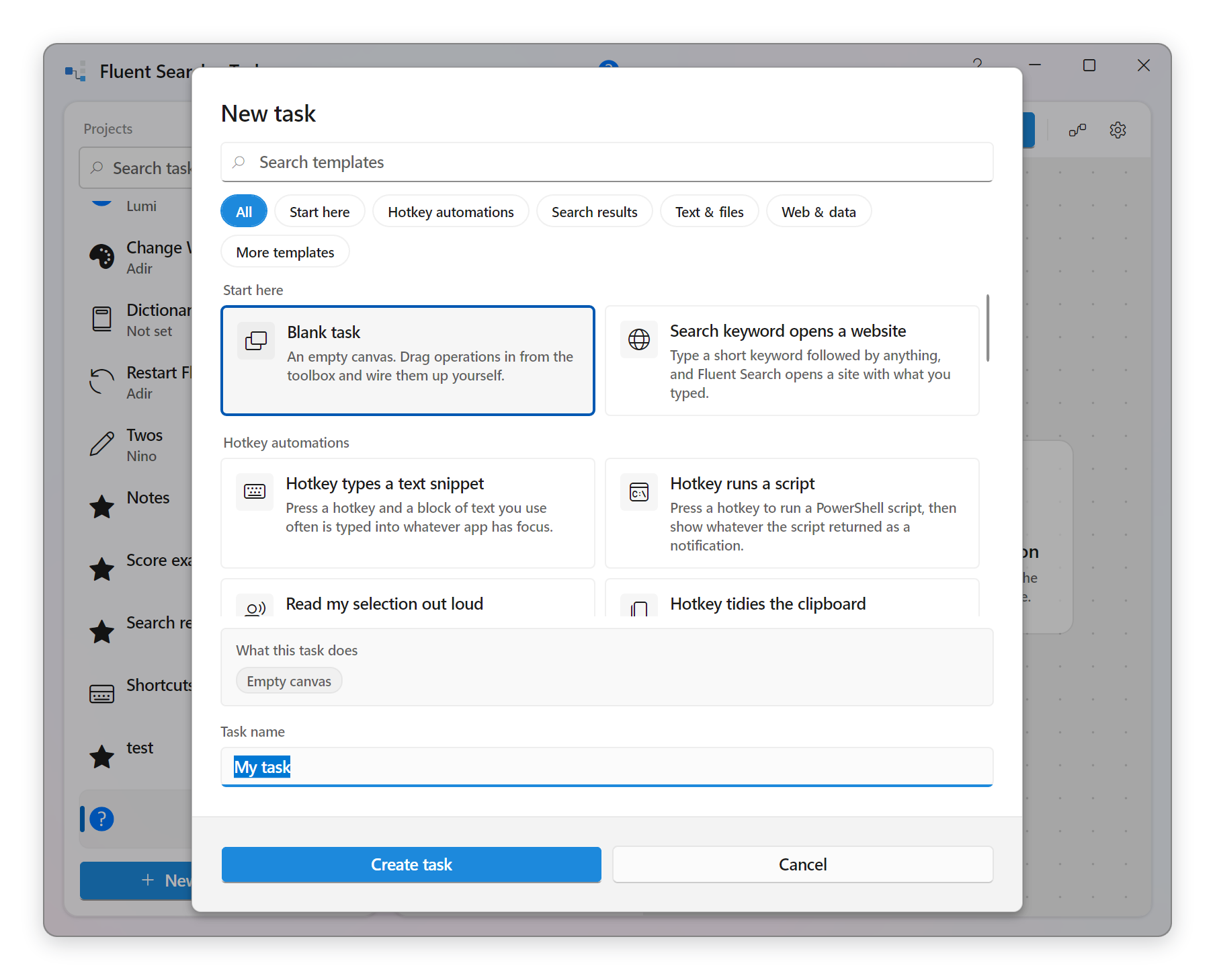
New tasks open a template gallery instead of a blank grid, grouped by what you are actually trying to do.
Working on the canvas
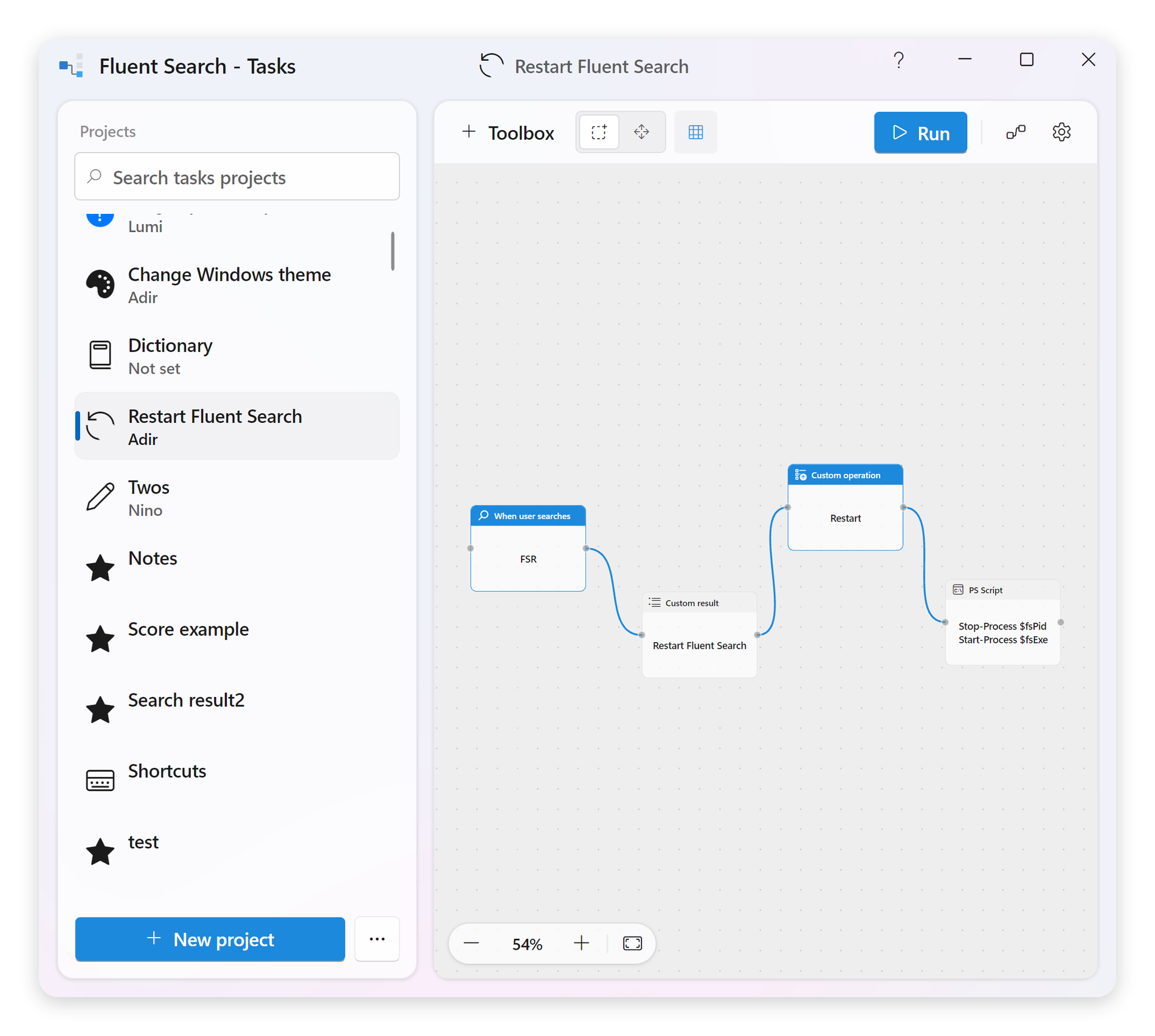
- Marquee select, Ctrl/Shift-click, and move, duplicate or delete as a group
- Hold Space or pick the Pan tool to move around; pan is always available on the middle mouse button
- Nodes snap to a grid while dragging (hold Alt to place freely), connections can be selected and removed, and there are zoom controls, a zoom readout and Fit to view
- Keyboard shortcuts throughout, listed in a help flyout in the title bar
Understanding what went wrong
- Press F5 to test-run a task without waiting for its real trigger. Nodes light up as they run and show whether they succeeded or failed.
- A failing node shows a short, plain-language headline instead of an exception. Clicking it explains what the error usually means, what to check, and takes you straight to the operation that failed.
Running a task by hand actually works now. Pressing Run used to fire every trigger with an empty payload, so any task that reads something off its trigger — which is most of them — only ever proved that its first operation could not cope. Run now asks for whatever the trigger would have carried, pre-filled from the trigger's own configuration, and builds the payload through the same matcher the live trigger uses. Answers are remembered per trigger.
New Task capabilities:
- Embedded Python. Run Python scripts and Python triggers without installing Python, with cancellation, compiled-script caching and the standard library packaged in.
- Search operations. Search apps, files, web and plugins, then use each matching result in later steps.
- A Cooldown trigger and a Transform Text operation
- Steps clearly choose between a saved result or the previous step, and between running an action or showing the result
- Tasks can be safely edited while disabled, guide empty projects, confirm deletions, and preserve duplicated settings
- Clearer runtime and C# script errors, and project search that matches by name, author and description
Cancellation now reaches downstream operations, graph connections no longer create loops or lose detached nodes, and copied text is available as an output.
Settings — fully keyboard navigable, with a real search
The Settings window could not be operated by keyboard alone. Tab was swallowed inside the settings pane and could never leave a setting once it got in, the arrow keys stalled between settings, and category headers, grouped settings, the breadcrumb and the search results could only be reached with the mouse.
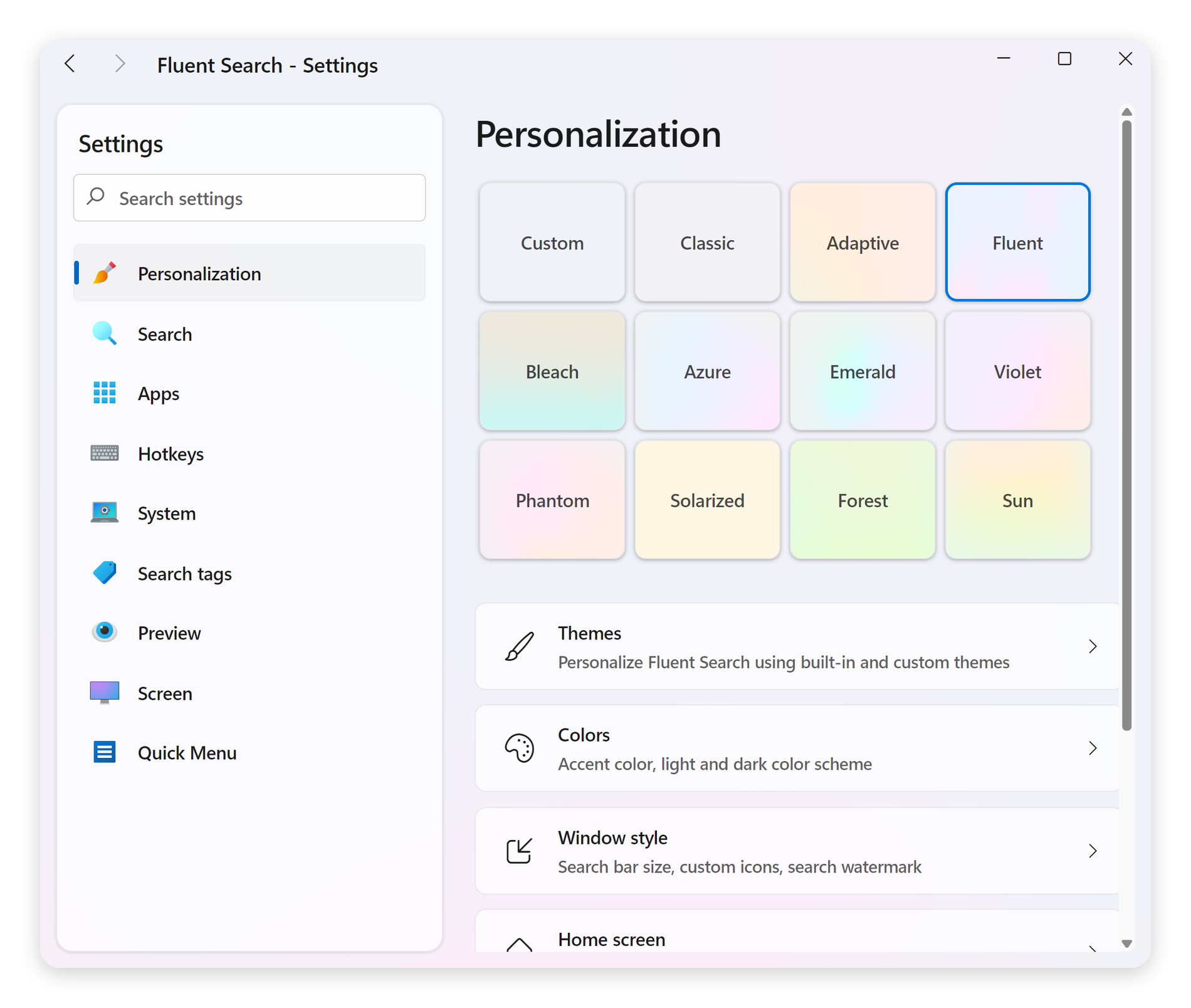
Settings now works end to end from the keyboard. Tab and Shift+Tab reach every control with no dead ends. Up and Down move between settings, Enter or Space opens the focused one, and Escape steps back out. Left and Right move between the page list and the page, and fold or unfold a group. F6 cycles between the search box, the page list and the page. Ctrl+F jumps to search, Alt+Up opens the parent page, Alt+Left and Alt+Right walk the page history, and typing any letter or digit jumps straight to the settings search. Focus follows onto the new page when the page changes instead of being left behind — and a page opened with the mouse still draws no focus ring, so nothing looks different if you never touch the keyboard. The Plugins page had the same problem and is fixed too.
Settings search was redesigned. Results now appear inside the settings window itself, with a "Results for…" header and a result count, replacing the popup that took over the whole screen.
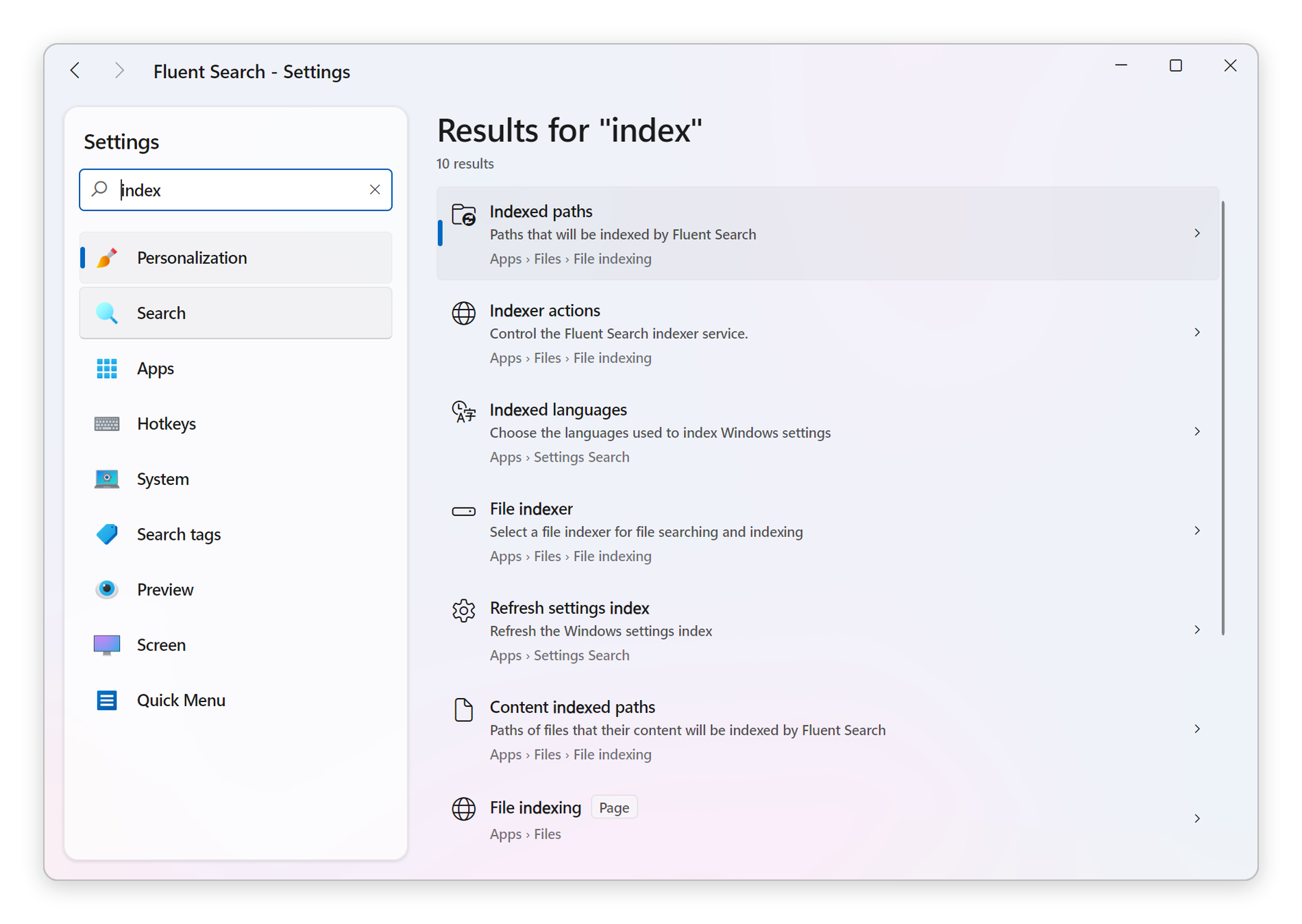
Every result shows what it is, a short description, and the full path it lives on — for example Search › Interactions — with the matched part of the name highlighted and a "Page" badge for whole pages. Arrow keys no longer navigate you to a different page on every press. Opening a result always lands on the correct page, including settings that live several levels deep or are shown on a different page than the one that owns them, then scrolls to the setting and highlights it. Duplicate-looking rows are gone, pages that finish loading after startup are included immediately, and search is faster and never waits on AI.
The small things you use every day
Fluent Search is more than a file finder, and 1.5 sharpened the rest of it too.
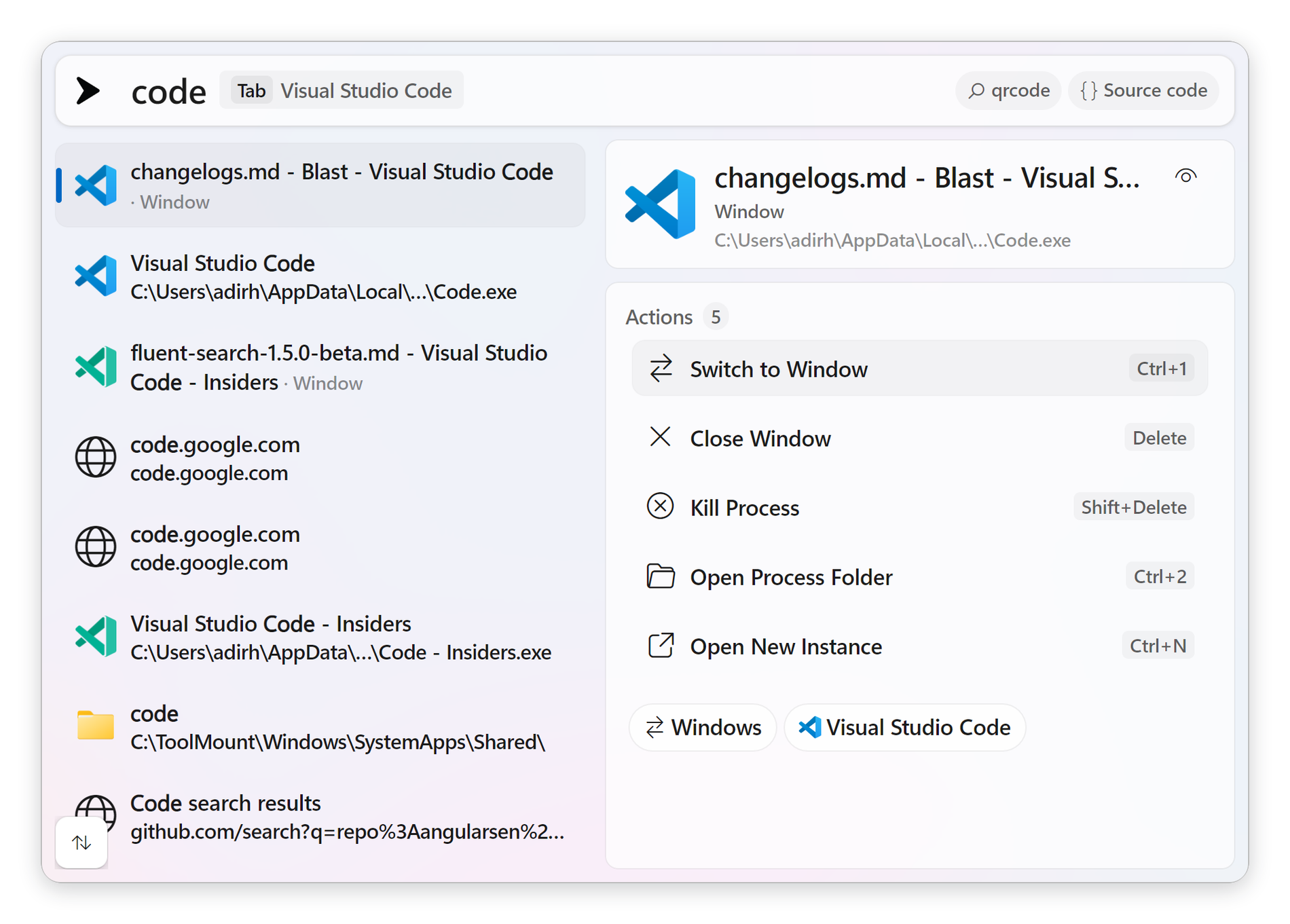
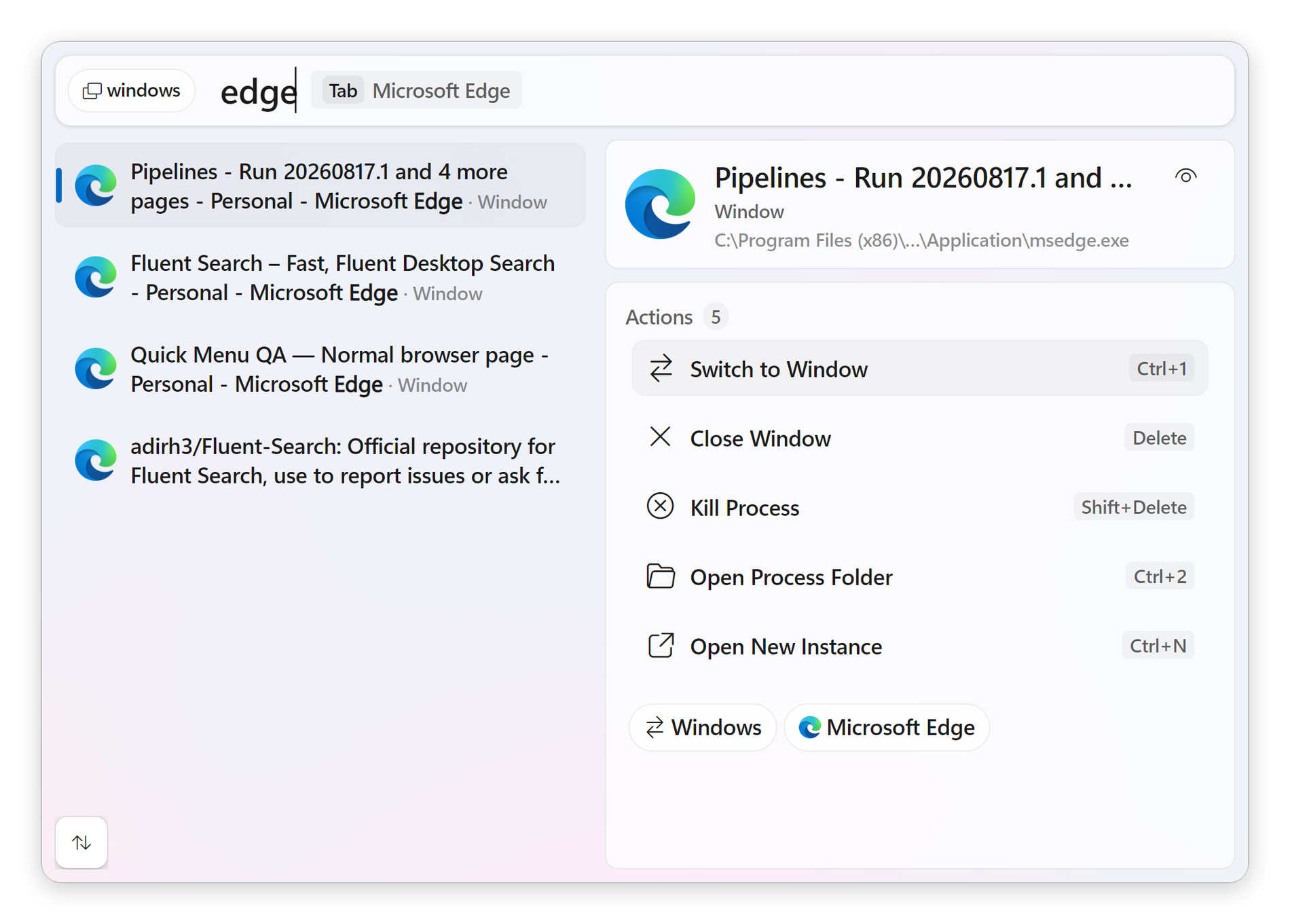
Switch to any open window. Running-app search now shows every open window even when several share the same app identity or process, newly opened windows such as Microsoft Edge stay searchable instead of being cached with a dead process ID, and windows on other virtual desktops are tracked correctly.
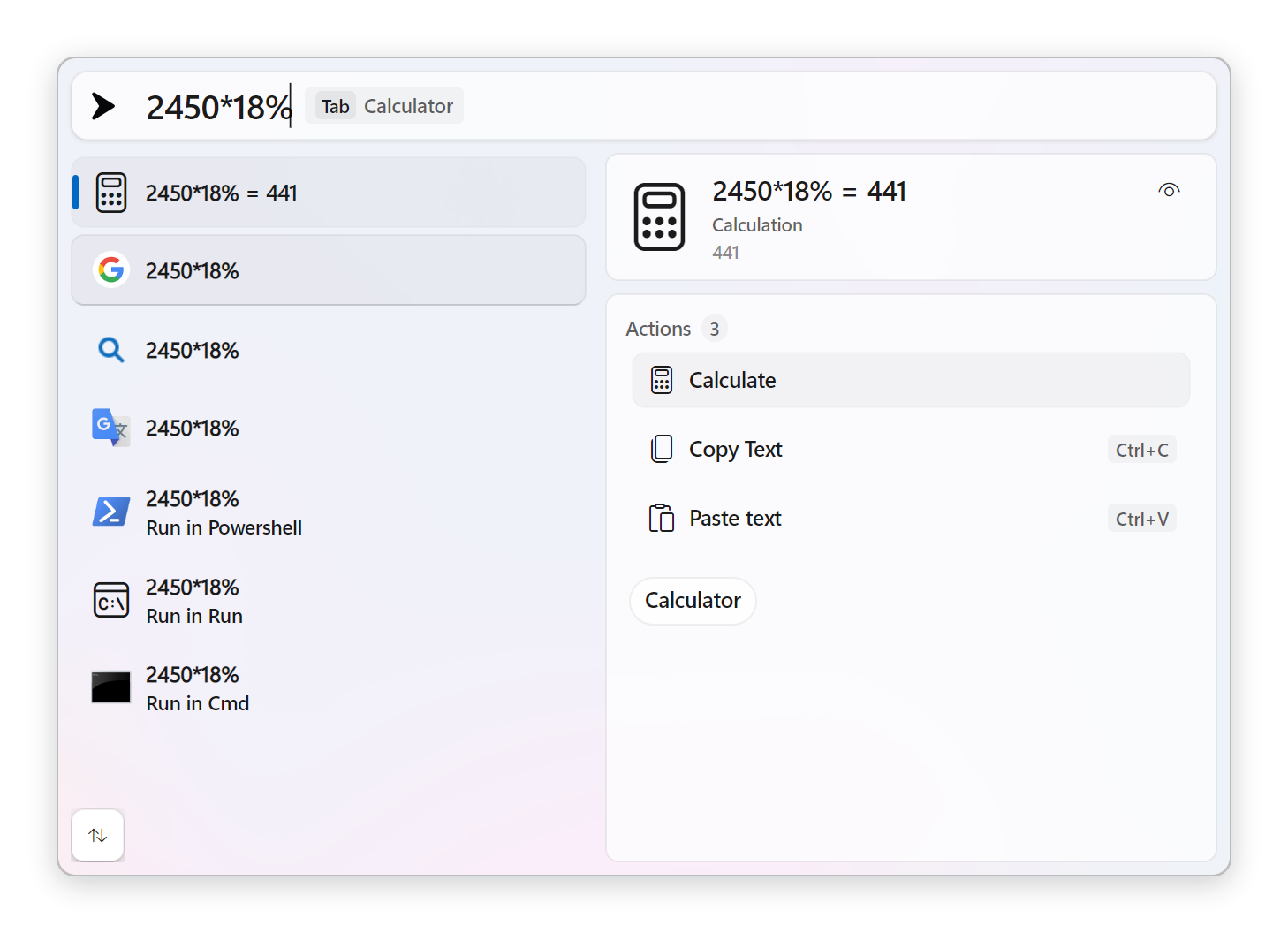
The calculator handles percentages, and log(x) now matches Windows Calculator (base 10) with ln(x) available for the natural log.
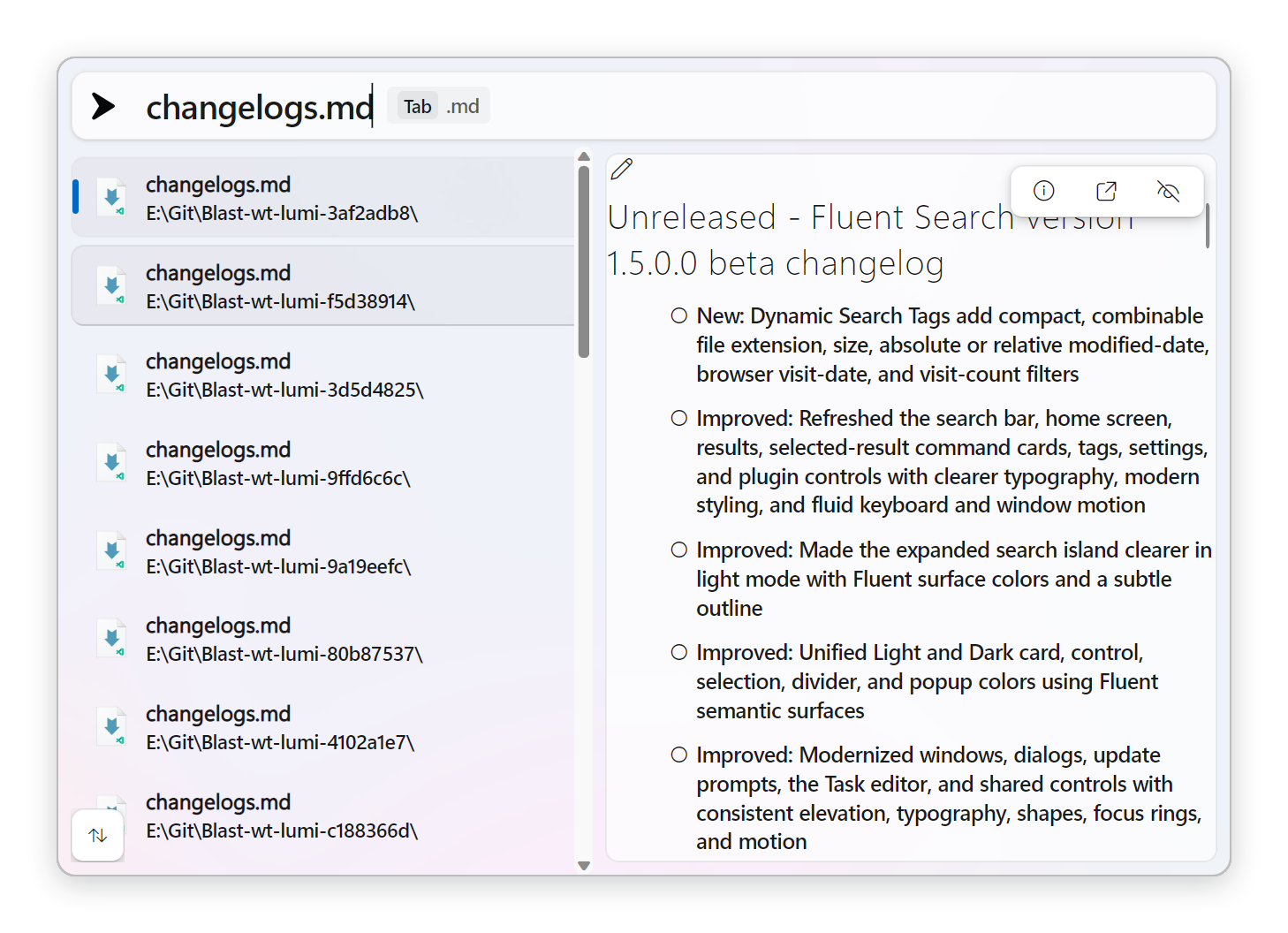
Previews got a lot better. The built-in Windows file preview showed an empty area for almost every file, on every machine it was tried on, for three separate reasons — all fixed. Windows lets a file type point at a preview handler in several different places in the registry and Fluent Search only ever looked in one of them, finding 31 file types on a typical machine where asking the way Explorer does finds 141; fonts, 3D models, contacts and certificates now preview. Handlers that need to be told their background and text colour now get them, so previews follow the app theme instead of being a white rectangle in dark mode. And a preview that failed to start left an empty card forever — it now falls back to the normal file details preview.
The floating result toolbar is visible over previews. Previews render into their own native window, and Windows always draws those on top of everything Fluent Search draws itself, so the toolbar was completely invisible whenever a preview was showing — the only way to hide a preview was to already know the keyboard shortcut. The toolbar is now cut out of the native window, and the cut follows the same corner roundness setting as the rest of the UI, so previews finally have properly rounded corners too.
App search shows Windows system apps again — Settings, Get Started, Windows Backup, Click to Do and future visible Windows apps. Uninstall is hidden for Windows-protected packages, using the same system signature and blocklist rules Windows uses.
Additional information reads better. Long file paths show useful leading and trailing segments instead of being hard-clipped, and URLs drop the redundant http(s):// so the host and query stay visible.
Also from the 1.0.2 line: files and folders gained a Share option supporting both OneDrive and Windows share, and random crashes on ARM64 machines were fixed.
Browser and web
Browser history search got noticeably better at finding what you meant: exact matches, Unicode, apostrophes and encoded URLs all rank far more reliably, exact authorities now outrank path lookalikes, and Hebrew, IDN and encoded-URL matching moved into bounded native SQLite queries, making history search both faster and much lower-allocation.
Your open browser tabs are also searchable now, natively, with no extension to install. Choosing a tab brings its window forward and switches to it, and tab monitoring can be turned off in the browser search app settings.
Web Preview supports unpacked browser extensions such as uBlock Origin, and behaves better across more layouts and window sizes.
Plugins
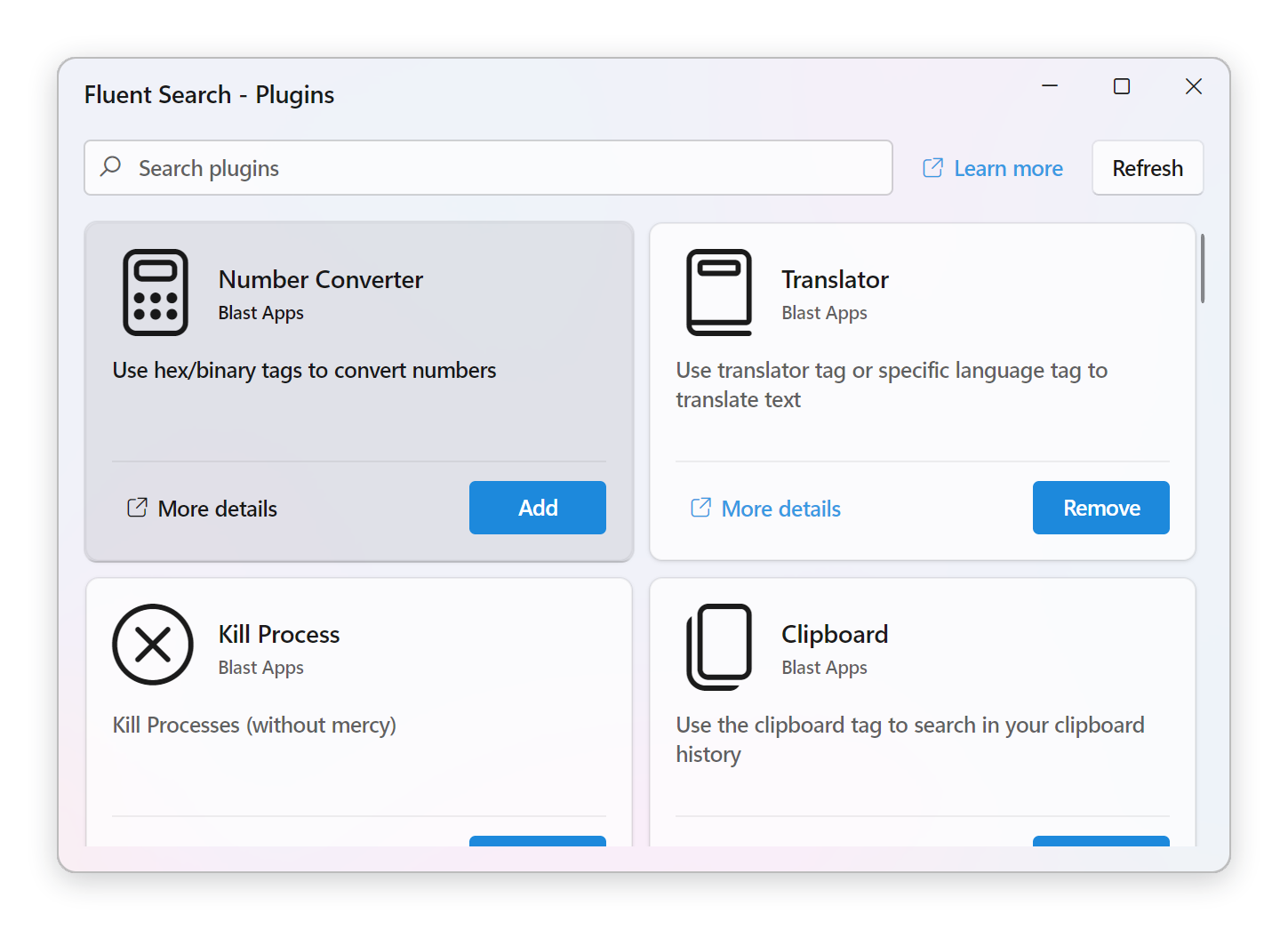
The Plugins window gained a search box that matches the one in Settings, a tidier toolbar, and restructured plugin cards whose details link and action button no longer get clipped. The plugin grid also drops to a single column on narrow widths, so it finally looks right inside the Settings page.
Faster startup
Fluent Search used to load everything during startup and then flip a single "finished loading" switch. Every window except search, the tray and About sat behind a loading placeholder until that switch flipped — even when the feature behind it was already usable.
Startup is now a graph of independently timed components. Each feature waits only for what it actually needs, so the feedback window, process history, Screen Search, the result preview and the settings window all become usable seconds earlier on a cold start, and the search window itself is ready sooner. The placeholder that is still shown now reports real progress instead of an endless spinner, so a slow start no longer looks like the app has hung.
Startup is also measured per component, which means a future slowdown can be attributed to one capability instead of "startup got slower".
Fixed along the way: pinned results and Quick Menu items could be silently dropped when a saved result was resolved before the search app that owns it had loaded; Quick Menu tags contributed by a task's search trigger went missing after a restart; the settings window could show a partial apps and hotkeys list; and quitting while Fluent Search was still starting could leave work running during teardown.
Performance and stability
Opening the search window no longer stalls. The renderer now wakes immediately when composition work arrives instead of waiting for an unrelated commit callback, and Fluent Search uses physical DWM pacing. Same-binary validation: fresh-frame P95 dropped from 266 ms to 17 ms in rapid opens, from 221 ms to 24 ms under aggressive cold memory, and from 543 ms to 38 ms with a deliberately delayed commit callback — all without any keep-warm CPU work.
Typing feels lighter. Redrawing the visible rows is around eight times faster when the results stay put, roughly two and a half times faster on each keystroke, and each keystroke produces about half as much garbage. Working out which part of a result matched what you typed is about twenty times faster and, once warm, allocates nothing at all.
Highlighting is visible again. On Windows 11 the interface font is Segoe UI Variable, and that font has nothing between its regular and its bold weight — so the semi-bold the highlight asked for was quietly answered with the very same face the rest of the text already used. It now uses a weight the font really does draw differently. Two more highlighting bugs went with it: a result whose whole name matched came back with no emphasis at all, and a highlight that ended in the middle of a character cluster tore it apart, separating an accent from its letter and breaking a multi-person emoji into the individual people it is built from.
The random 2 GB startup spike is fixed. Fluent Search sometimes used around 2 GB of memory for a few seconds right after starting. It happened seemingly at random, which made it look like a Task Manager glitch, but the memory was real: it came from recompiling the C# scripts inside task projects, because the generated script text was assembled in an unpredictable order and so never matched its cached copy. Startup now peaks at roughly a third of that.
Icons and images were modernised across the app. Icons keep clean edges at every size, large previews are far more faithful, drawing a row of icons costs about a sixth of what it did, and Fluent Search now holds 43 GDI and 4 user objects instead of 493 and 154 with 190 icons cached. The jagged staircase around app icons — worst on the Microsoft Edge icon — turned out to be unpremultiplied alpha being blended towards black twice, and is gone.
Background processing was completely redesigned for more accurate app tracking and near-zero idle CPU usage.
A live, interactive welcome tour
The welcome window used to be a slideshow of screenshots. Every screen was a pair of PNGs, one for dark and one for light, so the tour could never match your accent colour, your theme, the window opacity or your actual hotkey — and it went stale the moment the app it was showing changed.
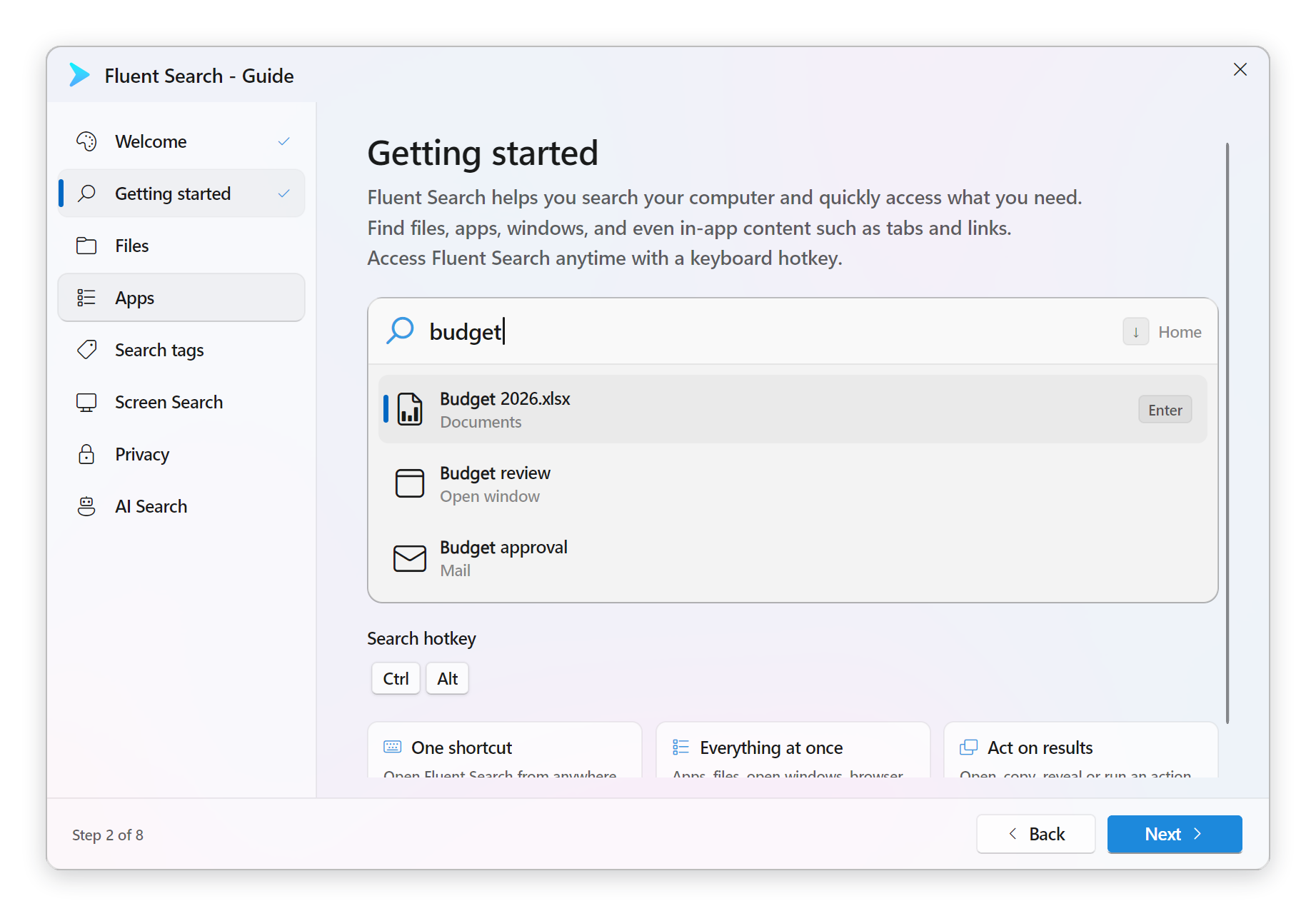
It is now built from the real controls. Each step is a small working replica of the thing it is describing: the search window types a query and streams results in, the search-apps step is a live gallery, the theme step previews the real palettes and applies the one you pick, and Screen Search, Preview and process history all animate the way they behave in the app.
New users get an eight-step tour with a step rail they can click through, plus a hotkey picker and a theme picker built into the relevant steps, so the first run does some of the setup instead of only talking about it. The window fits the screen it opens on and rearranges for smaller sizes and higher scaling, and it follows the system "reduce motion" setting — with animations off the tour is completely still, including the search caret.
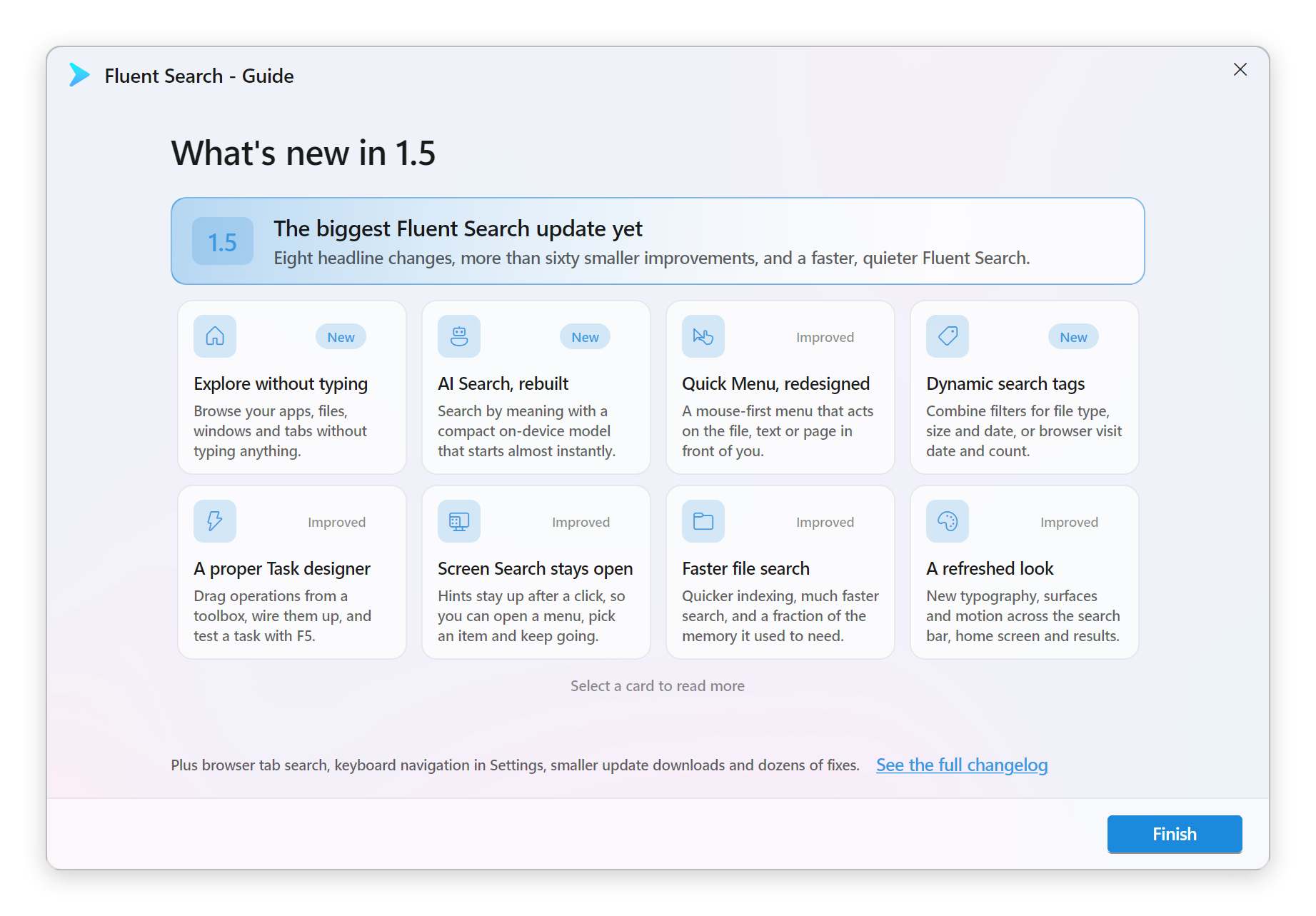
Users updating to 1.5 get a single "What's new in 1.5" page instead of the full tour.
Under the hood
- .NET 11 and Avalonia 12. The vendored Avalonia and FluentAvalonia forks moved from NuGet packages to git submodules, removing 2.1 GB of binaries from the repository.
- Differential updates. Updates can now use much smaller differential downloads, with automatic fallback to the full installer.
- A full dependency audit across every project in the solution: 97 package references, 55 projects. Five security advisories resolved, zero remaining, 13 unused package references removed, and deprecated packages replaced with maintained alternatives.
- The entire app text was retranslated from scratch with LLM assistance in all supported languages, including English. Setup, settings and search text is clearer and more consistent throughout.
Getting to stable — October at the latest
Fluent Search 1.5.0 reaches the stable channel by October 2026 at the latest.
Between now and then the work is entirely stability and your feedback. No new features — just making sure this holds up on every machine it runs on.
What I need from you as a beta tester
I said at the top that this beta will have bugs. The corollary is that I need you to tell me about them.
A release this large touches nearly every part of the app, and I cannot reproduce every hardware configuration, drive layout, language, browser and workflow on my own. Every issue filed pulls the stable release closer.
Before you update
- Back up
%APPDATA%\Blast. That folder holds your settings, tasks and plugin configuration. The file index is not worth backing up — it rebuilds itself. - Do not install this on a machine where you cannot afford disruption in the middle of a work day. If Fluent Search is load-bearing for you, put the beta somewhere you can experiment.
- You can go back. Set Settings → Updates → Release feed to Stable and you will move back to the stable line at the next release. If you need to downgrade immediately, reinstall 1.0.1.4 and restore the folder you backed up.
What makes a report genuinely useful
- What you did, what you expected, and what happened instead
- Your Windows version, and whether you are on x64 or ARM64
- For search problems: what you typed and what came back
- For crashes: what you were doing immediately before
- A screenshot, if it is visual
Especially valuable right now
- Anything that regressed from 1.1 or 1.0 — top priority, always
- File indexing on unusual drive setups: network drives, FAT32, exotic NTFS layouts
- The new home screen lenses — brand new, so genuinely untested outside my own machine
- Screen Search and Quick Menu on multi-monitor and high-DPI setups
- Performance. If opening the search window still feels slow, tell me what your machine was doing at the time
- Translations, now that everything has been retranslated
Thank you for being on the beta channel. This release exists because of you.